
Default Modifier Management on Dashboard and POS
Ensure consistent quality, streamline operations, and reduce waste with our comprehensive training. Perfect for new employees eager to impact our restaurant's success.
Introduction
Default modifiers are predefined ingredients or options automatically included with certain menu items. They help ensure consistency in taste and presentation while allowing for efficient order processing.
Navigating the Default Modifiers

Page Features
Modifier List:
Best Practices:
How to Add or Create Default Modifiers
Adding Default Modifiers
Step 1: Begin by accessing the menu management section and selecting "Default Modifiers."
Step 2: Select "+ New Default Modifiers" to initiate the addition of a new modifier.

Step 3: Input the required information:

3a. Specify the name of the default modifier (e.g., Bacon, Lettuce, Carrots).
3b. Select the appropriate type for the default modifier.
3c. Click "Save" to finalize and store the newly created default modifier.
How to Edit Default Modifier

Step 1: Locate the default modifier you wish to modify.
Step 2: Hover to the "Date Created" column.
Step 3: Choose "Edit" from the available options.
Step 4: Update the necessary details as required.
How to archive the default modifier
Step 1: Select the default modifier you want to archive.
Step 2: Hover to the "Date Created" column
Step 3: Opt for "Archive" from the menu.

Step 4: Confirm the action by selecting "Yes, archive it!" Alternatively, you can choose to "Cancel" and retain the item.

Back to top
Managing default modifiers effectively in a Point-of-Sale system.
How to add Default Modifiers:
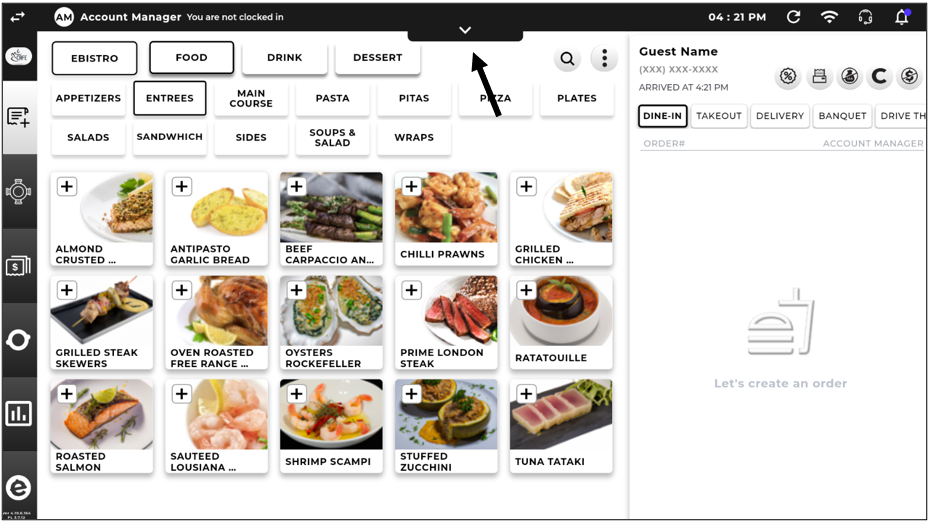
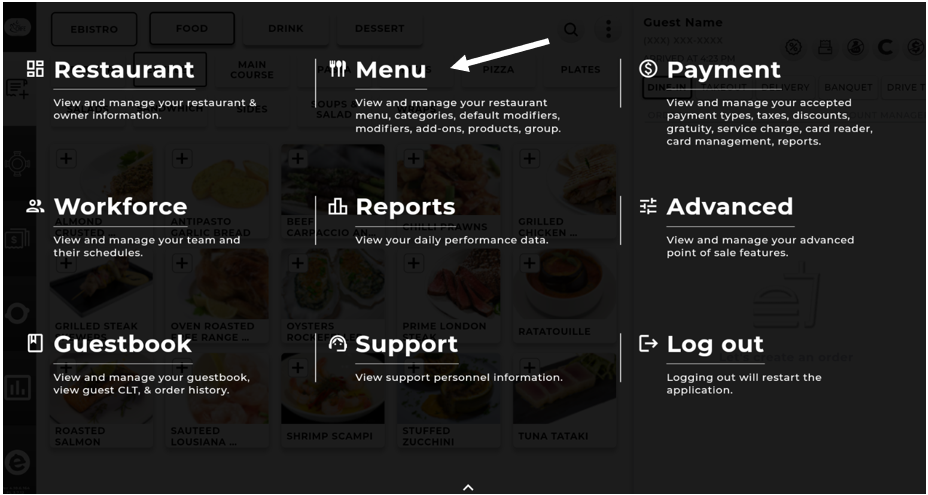


How to edit a default modifier

How to Archive a Default Modifier

Illustration: Default Modifier Positioning in Point-of-Sale (POS) Menu:
For a visual overview, refer to the illustration, which shows the accurate placement of default modifiers in your point-of-sale (POS) system.

Back to top
Updated on: 02/15/2026
Share your feedback
Send My Feedback Cancel
Thank you!
Was this article helpful?
Related articles
Product Management on Dashboard & POS
Uncover the convenience of eatOS, the restaurant management system designed to save you time and money. Its intuitive user-friendly interface makes creating and managing menu products a breeze. From controlling stock...
Read articleMenu Management on Dashboard and POS
Learn to seamlessly connect and manage menus between the Dashboard and POS system, ensuring consistency and streamlined operations across platforms.
Read articleAdd-On Management on Dashboard & POS
Explore and effortlessly configure the perfect menu add-ons for your restaurant with eatOS. Our intuitive platform empowers you to seamlessly manage, customize, and control add-ons capability – from appetizers to dess...
Read articleCategory Management on Dashboard & POS
Seeking a way to organize your restaurant's menu into more manageable categories? EatOS' Create and Manage Menu Categories feature is here to guide you. Dive into the powerful features of our restaurant management sof...
Read article